
I tend to work out loud, because it keeps me accountable. So the training I’m presenting next month as a lot of components to it. Primarily it is lecture and practice based. But as I look at my board and how it pans out, there’s a lot of room for activities.
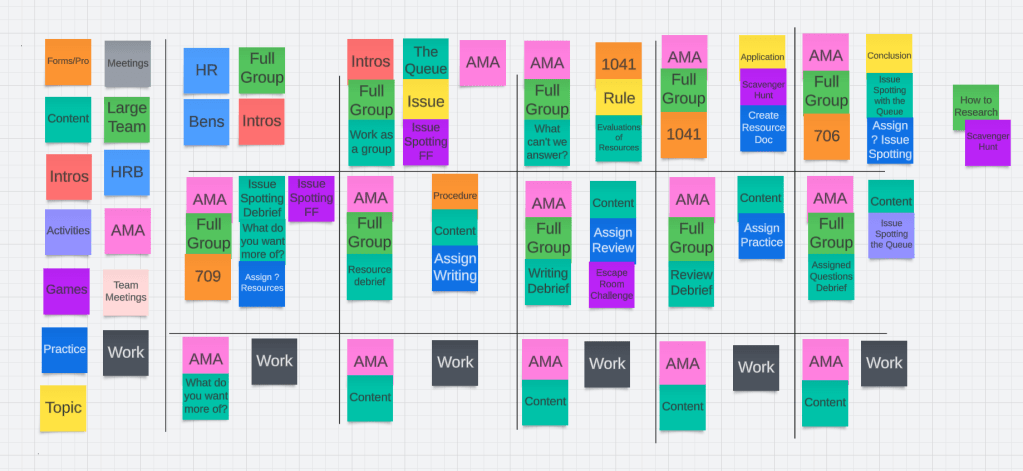
I’ve been working with AI to do some basic drafting for a while, letters, emails and the like. But I’m on a project at work that made me think more about how I can use it in learning. So, I need more activities that will have them use what they learned and build the team out. Here’s where OpenAI comes in. I already have a family feud-style game to teach how to spot issues in a research question. I’m using a scavenger hunt to help them practice research and help build a list of resources they’re going to use a lot. I’m going to build an escape room to help them put together the calculations and such. But I wanted more ideas.
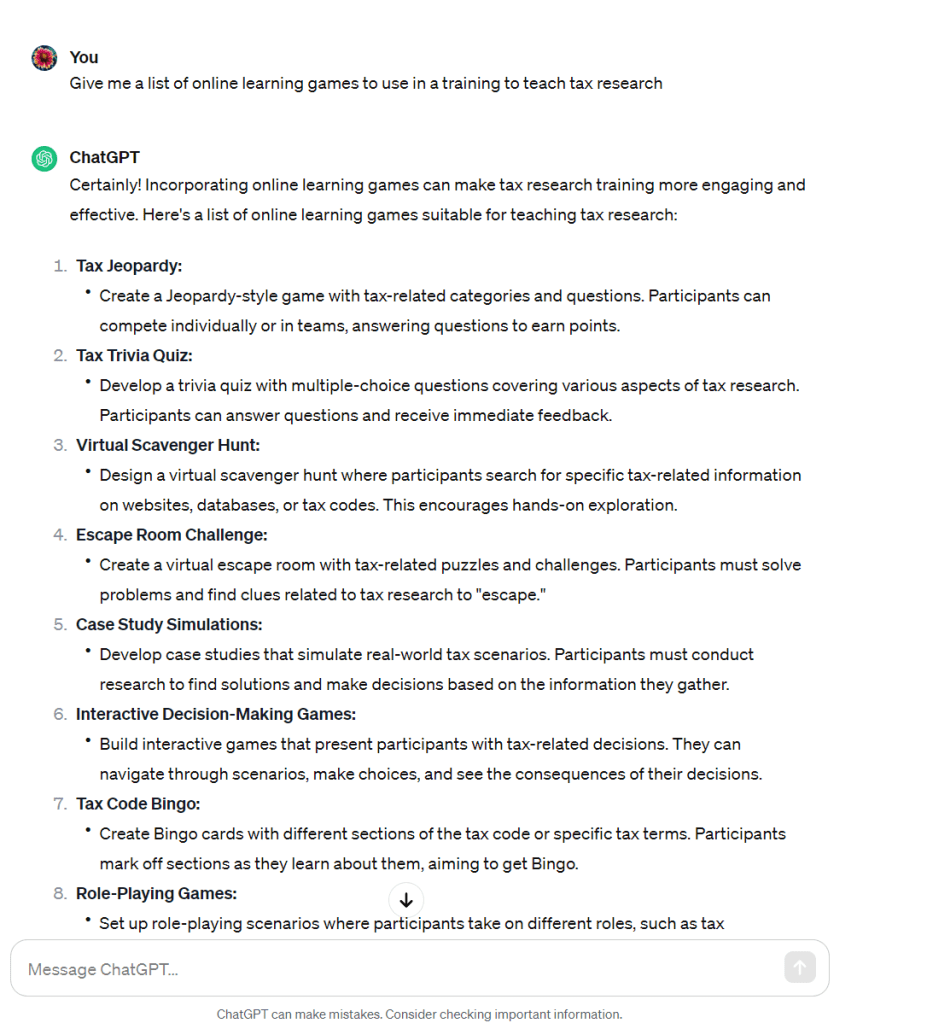
Does anyone else feel bad when they type their AI requests as a command? Just me? Maybe I’ll do Tax Code Bingo – I say a concept and the students find the code section on their bingo cards. While I don’t purport to know the whole code (because who could possibly), but there are going to be a number of code sections that are used so frequently that they need to know them off hand.
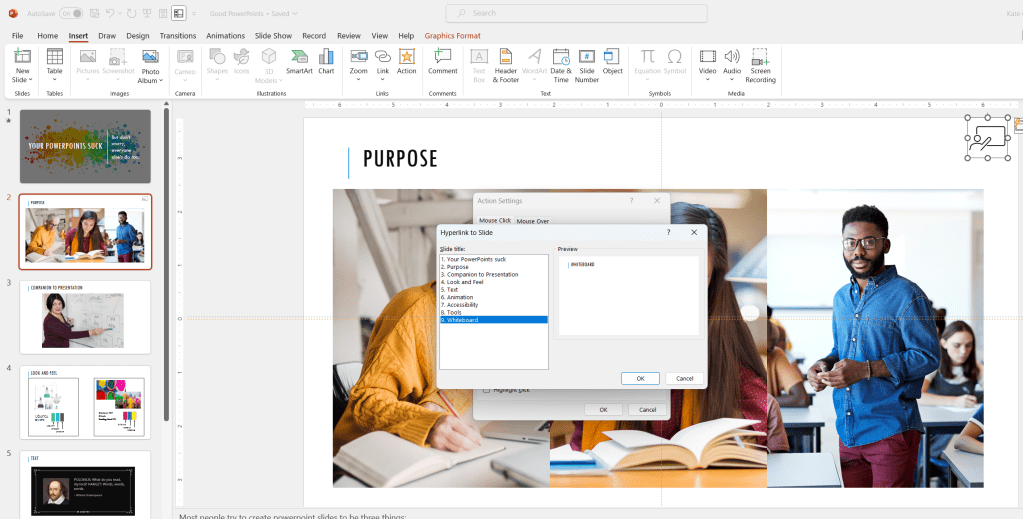
One of the new things that I’m adding to my usual PowerPoint materials is a blank whiteboard page at the end of the power point. That way I can go back and forth between Slide and Whiteboard without leaving the program. With the pen tablet, I can just write on the screen and draw the answer to the question. First thing I’m going to do is build a whiteboard button. This will allow me to click to the new screen from any other screen. It’s pretty easy – I’m going to find an icon for a whiteboard in the icons tab (Insert > Icons) then go to actions on the insert tab and select jump to last slide.
Then, on the White Board slide, I’ll have a button to go to last slide viewed.
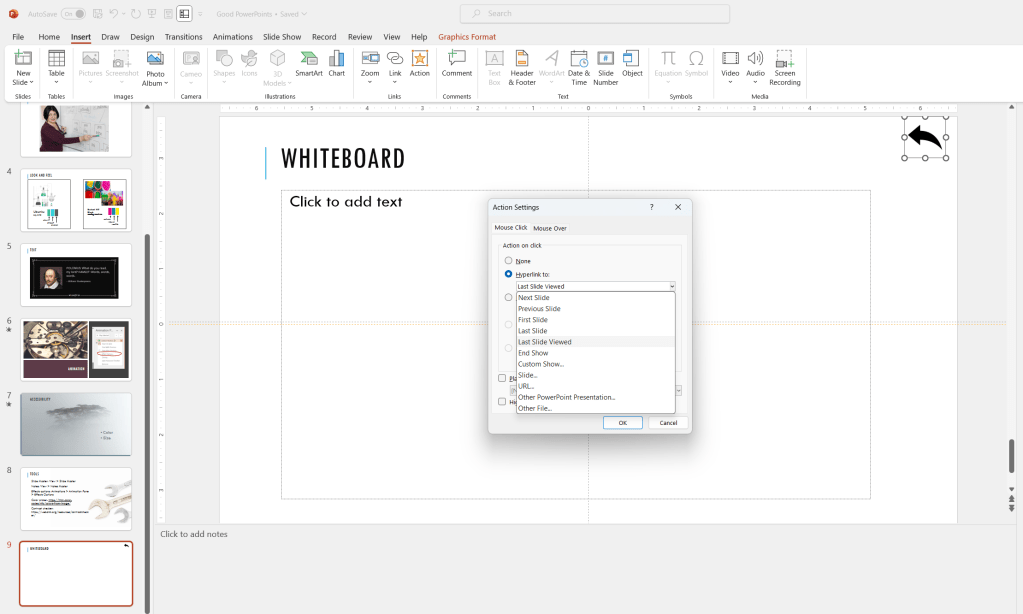
That way I can flip back and forth easily. A simple way to add a whiteboard to your power point presentation.
 kg learning